Elevate Your Networking
08 February 2026

How many business cards have you lost, crumpled, or forgotten? It’s a networking nightmare! And let’s face it, a stack of paper cards just isn’t cutting it in today’s fast-paced world.
Let’s dive into a cheap and innovative option worth considering.
If you have used Tap to Pay then this concept should be familiar to you. Tap to Pay uses Near Field Communication (NFC) technology to enable contactless transactions. Awesome, right?
You can also use this same technology to share information such as a link, vCard, etc. and I will show you how in just a few simple steps.
Requirements
Only a few things are required to create your very own NFC business card. You’ll need the following:
- NFC Card(s) Amazon
- NFC Tools App App Store or Play Store
Note: On Android, you may need to enable NFC in your Settings app
Getting Started
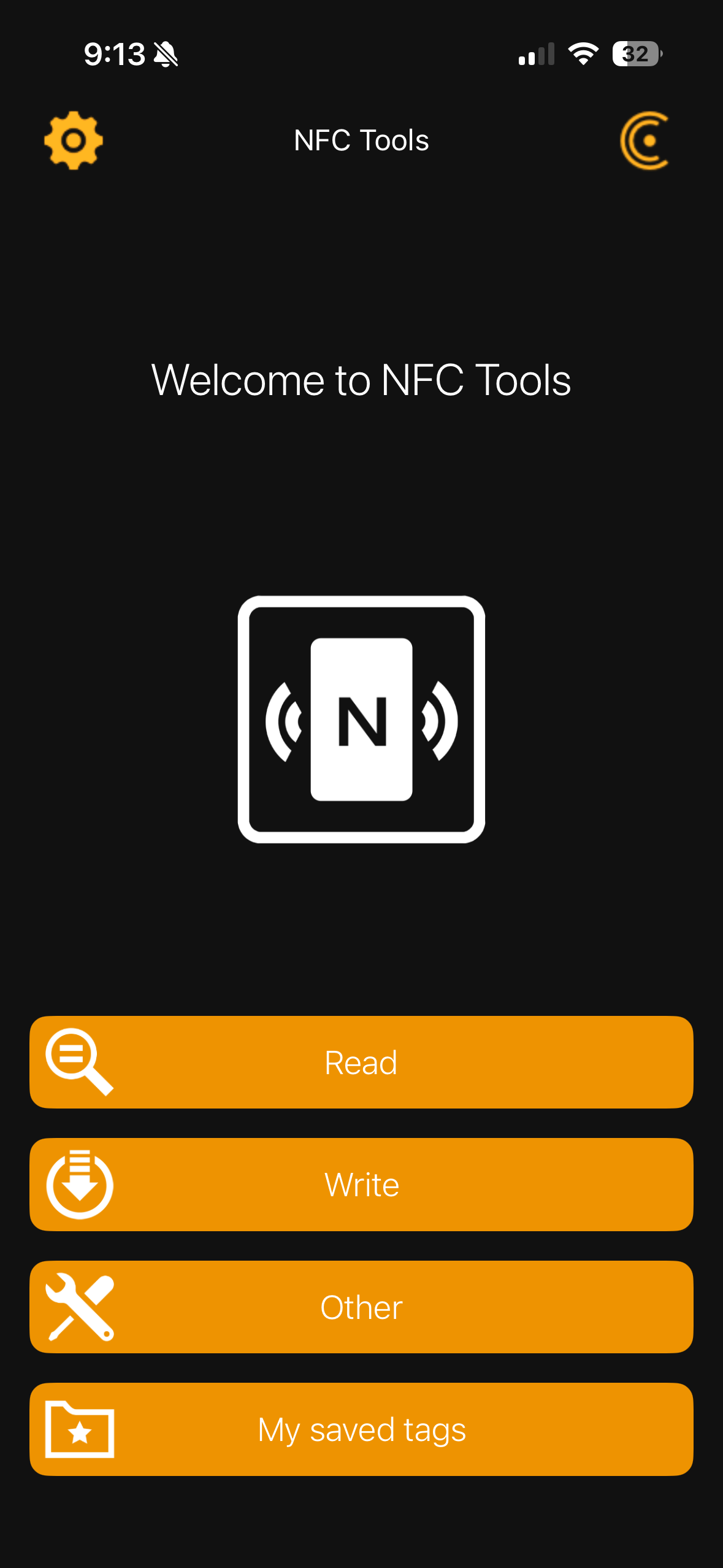
Once you have your card(s) in your possession, grab your phone. Navigate to the app store of your choice as linked above and install NFC Tools.
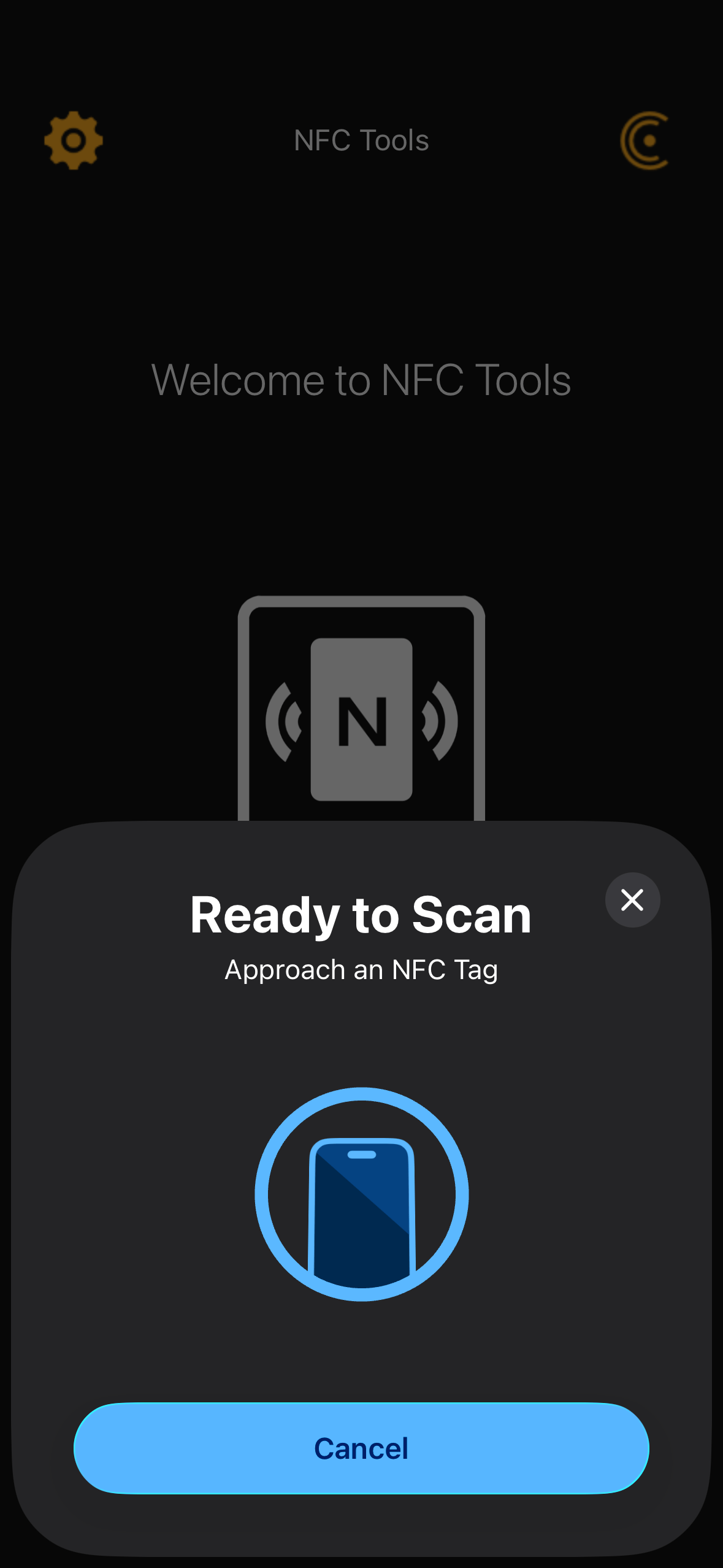
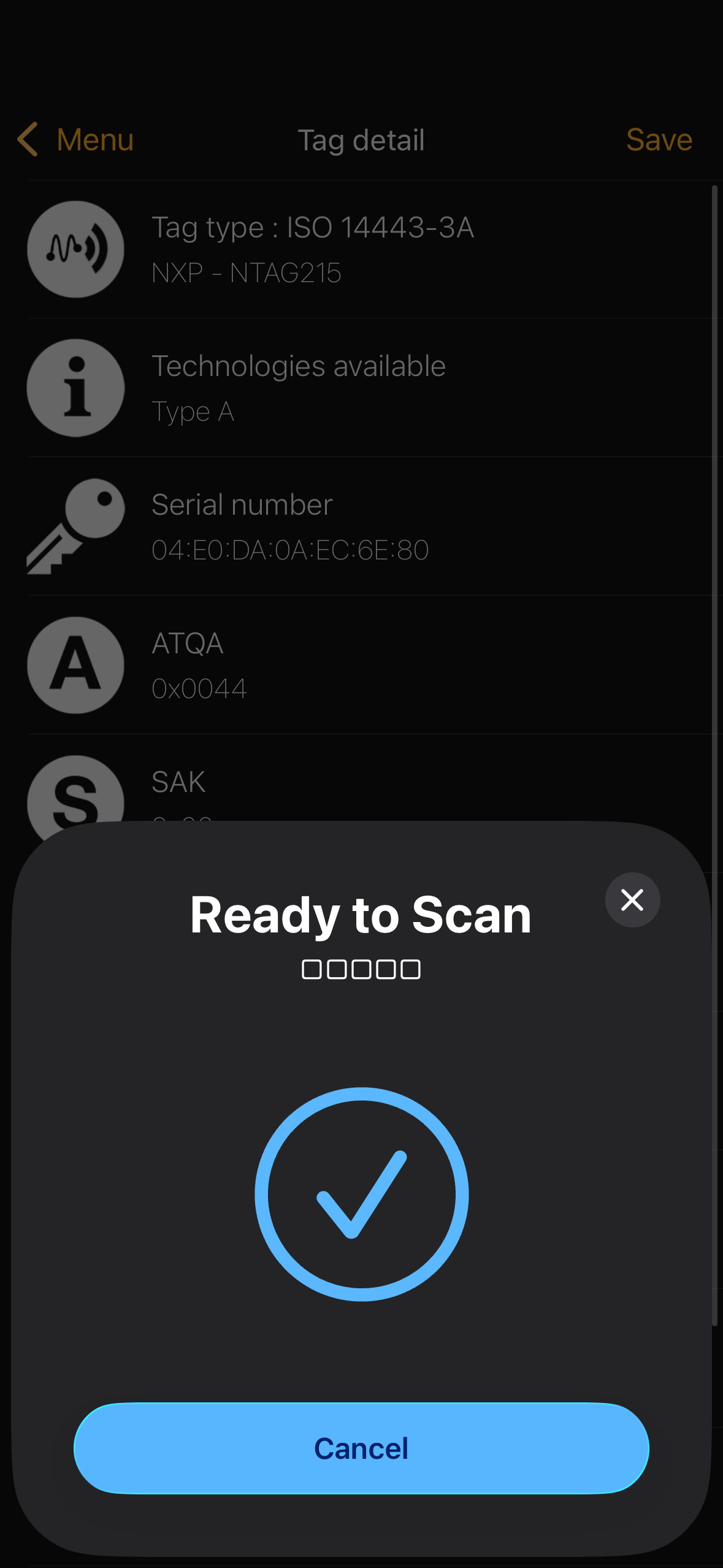
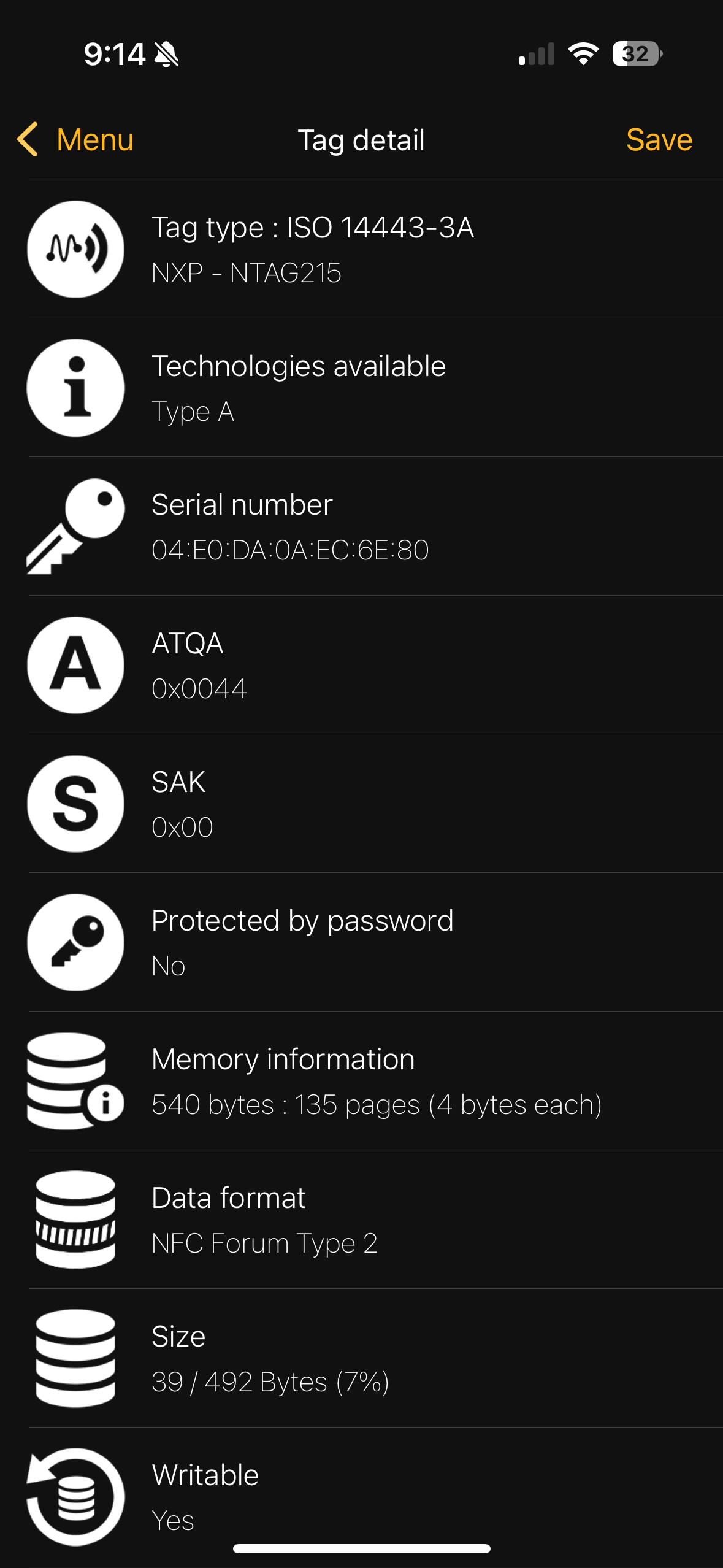
Open NFC Tools and tap Read while holding your new card near your phone. It should be detected almost instantly. Ensure that your card is writable by scrolling to the very bottom of the read screen.
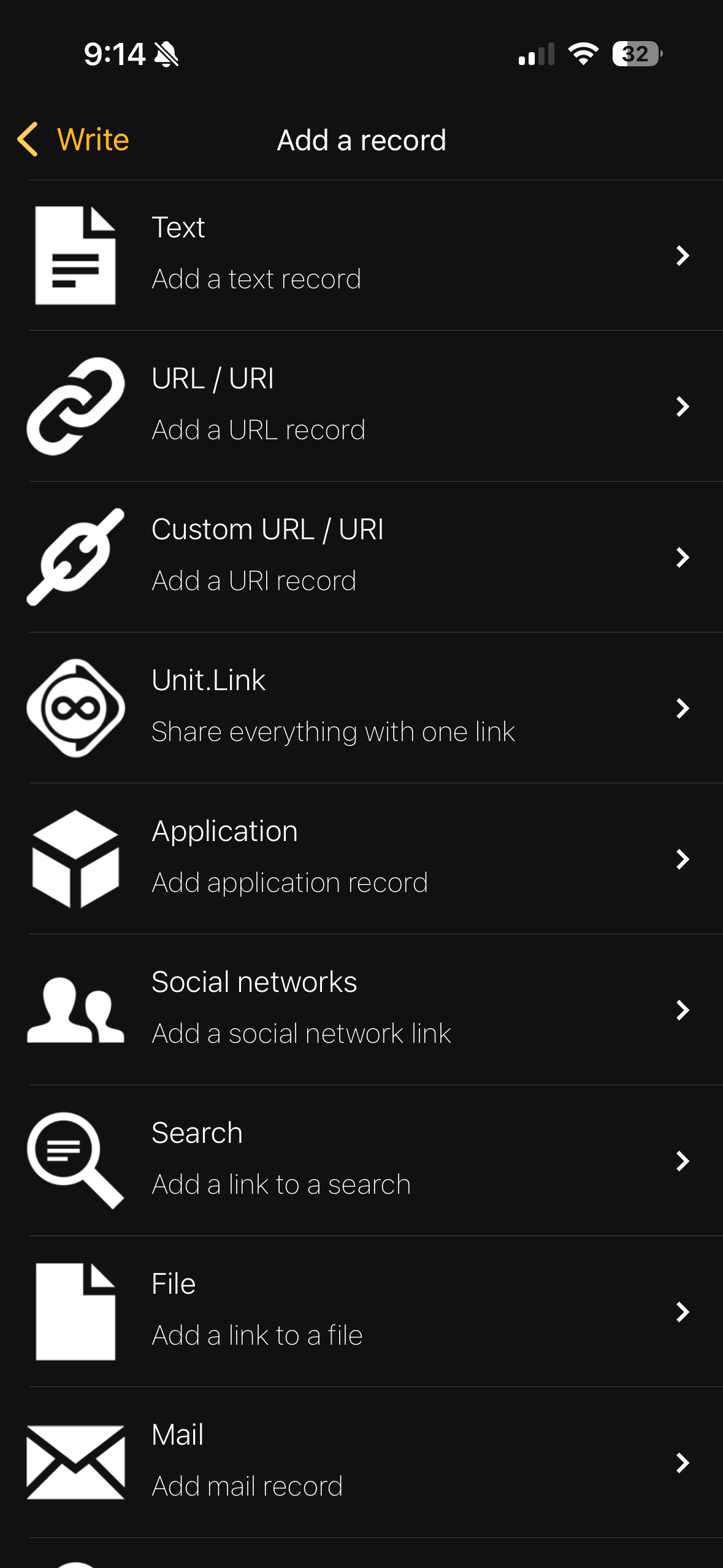
NFC Tools provides a rich range of record options to select such as:
- Text - Add a Text Record
- URL/URI - Add a URL Record
- Custom URL/URI - Add a URI Record
- Unit.Link - Share everything with one link
- Application - Add application record
- Social networks - Add a social network below
- Search - Add a link to a search
- File - Add a link to a file
- Mail - Add a mail record
- Contact - Add contact
- Phone Number - Add phone number
- SMS - Add SMS
- FaceTime - Add FaceTime
- FaceTime Audio - Add FaceTime, audio only
- Location - Add a location
- Address - Add an address
- Bitcoin - Add a Bitcoin address
- Bluetooth - Add a bluetooth connection
- Wi-Fi network - Configure a Wi-Fi network
- Data - Add a custom record
- Shortcut - Run a shortcut
Adding a Record
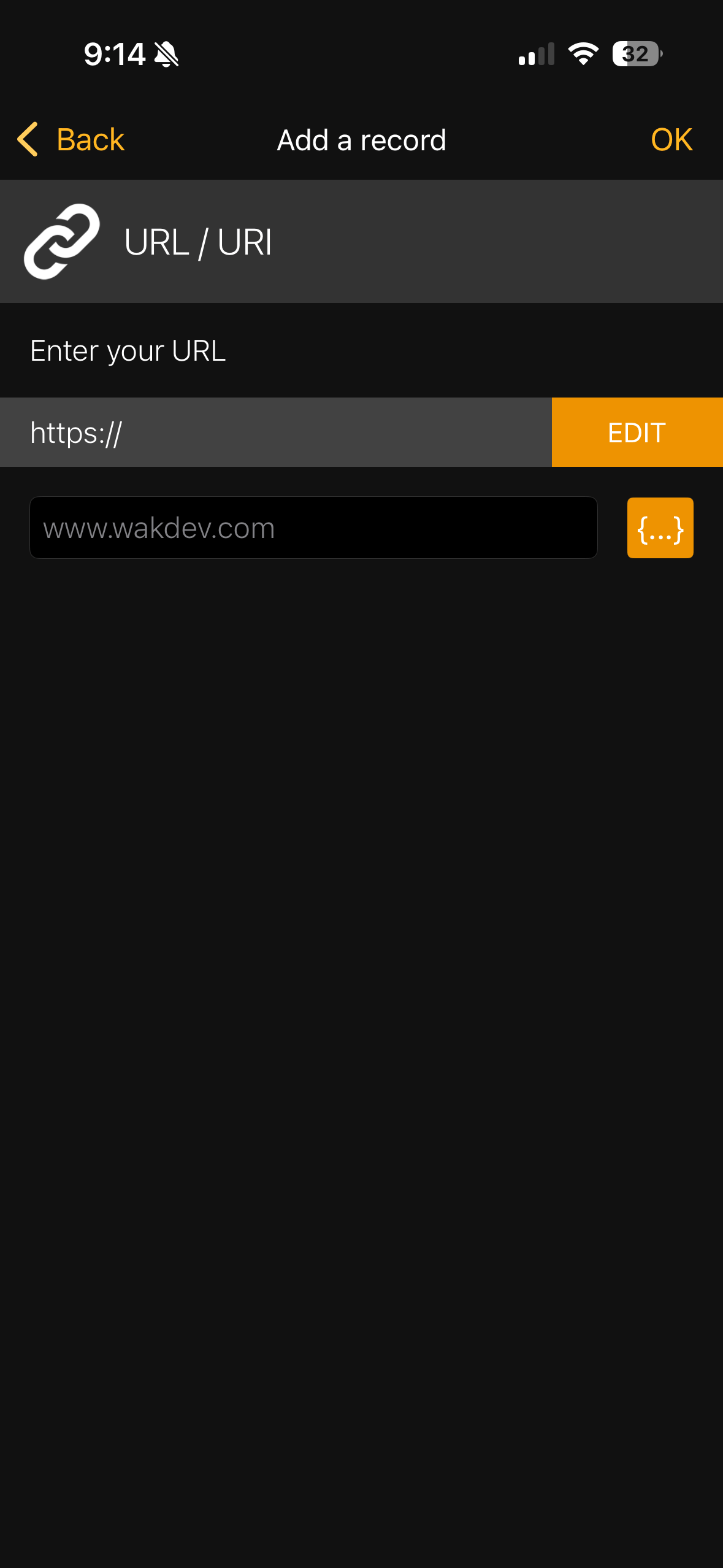
For this post we are going to focus on using just a URL/URI record on our new digital business card.
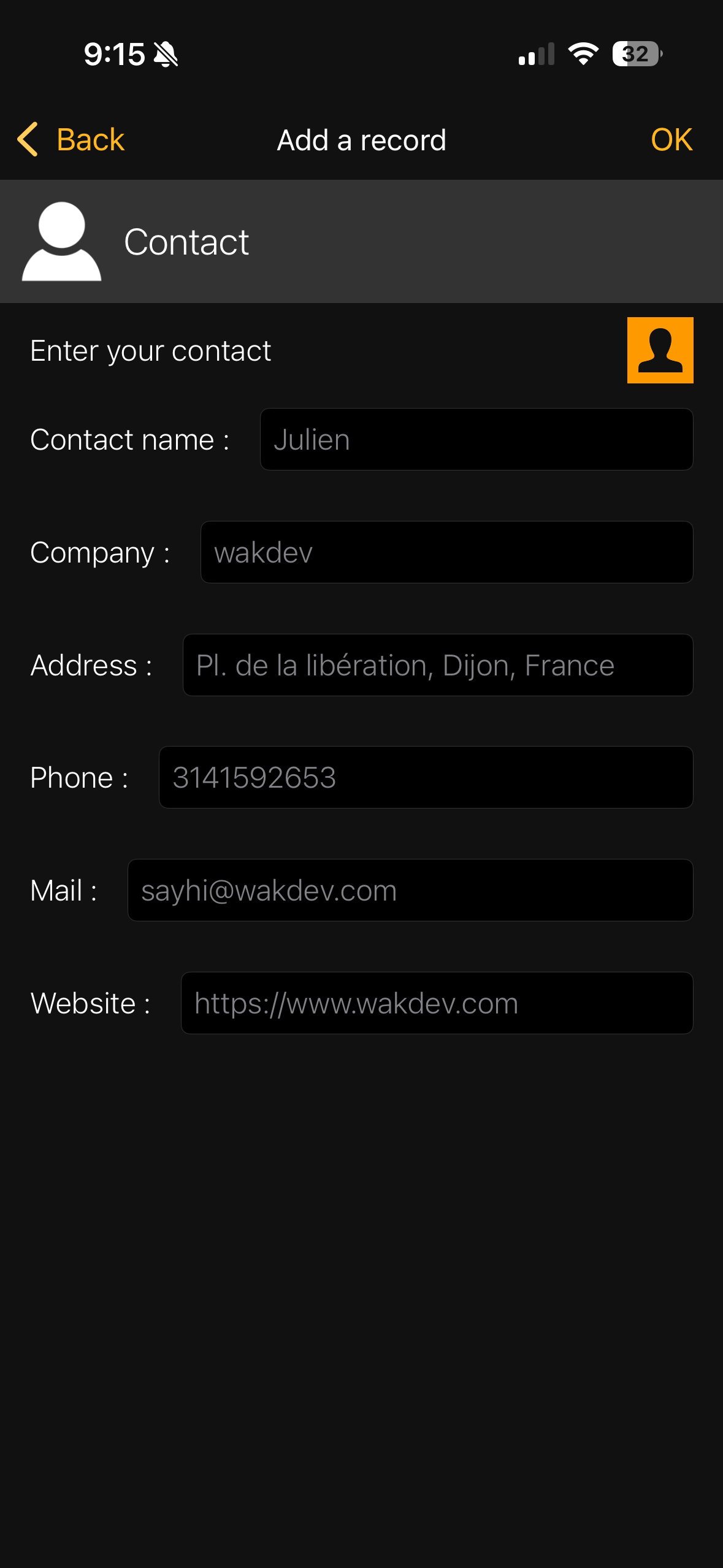
Another record to consider is Contact which acts as a vCard making it easy to share ALL of your information while you’re networking.
Once your card has been detected, all you have to do is select Write and Add Record.

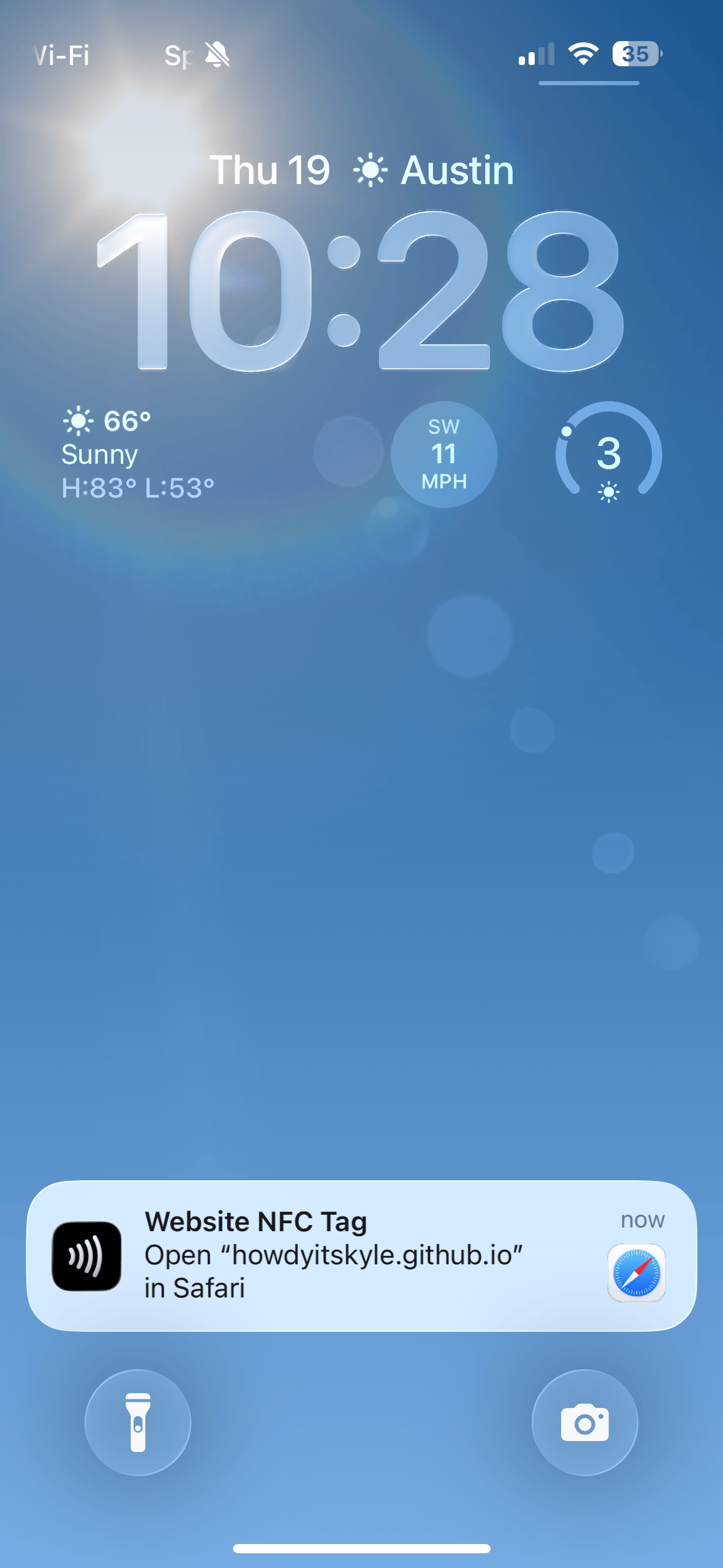
That’s it! You now have a digital business card. Test it out by tapping it on your phone.
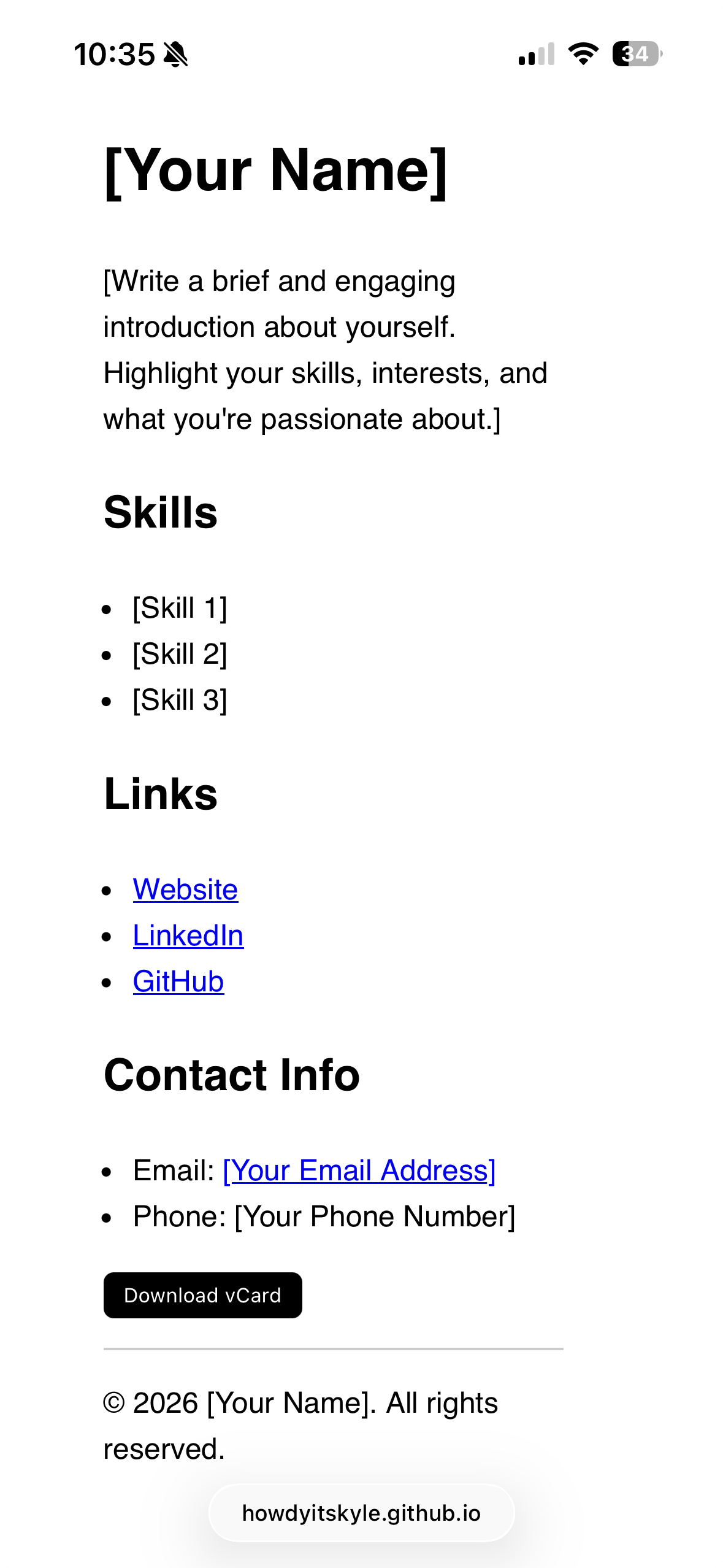
For this post I setup a demo page on github, feel free to use it if you like!
It’s that simple. Happy networking!